Before you start!
You need up to 60 minutes to follow these instructions and complete the form, and you need to do it in one sitting. We strongly recommend you find a time when you won't be interrupted as this will be the fastest approach for you, and will avoid a support call afterwards.
The good news is that over 90% of people get it right first time and done within 30 minutes, but do allow yourself the hour, as it would be difficult to exaggerate how precisely these instructions need to be followed. Every letter and every space you will enter matters.
Introduction
There are detailed instructions below for the following stages required to set up Rapid Health to interact with EMIS.
- 1. Choose and store two Rapid Health passwords
- 2. Add an EMIS user account for Rapid Health
- 3. Add a location for Rapid Health online appointment booking
- 4. Activate Rapid Health in EMAS Manager
- 5. Set password for the Rapid Health software
- 6. Set Rapid Health login access
- 7. Check EMIS Dummy Patient postcode and details
- 8. Find your EMIS Organisation ID / EMIS CDB Number
- 9. Checklist for New Customer Setup Form
Note: To enlarge any screenshot, click on it. To close it, click elsewhere on your screen.
1. Choose and store two Rapid Health passwords
Step | Instructions |
|---|---|
| Step A Choose 2 passwords | Please choose two different passwords and take a note of them. You will need them for the instructions below. The second password will be needed for the New Customer Setup Form. |
| Why am I doing this? | The steps below will ask you to add an EMIS user account for Rapid Health and to give the Rapid Health software permission to talk to EMIS. One password is set for manual access and the other for software access. You will give Rapid Health the second password to allow its software to access your practice's EMIS - so by setting two different passwords, you will ensure Rapid Health may not log in manually. This security precaution will help to protect patient data. |
2. Add an EMIS user account for Rapid Health
Step | Instructions |
|---|---|
| Step B Add New User | In EMIS, go to Configuration.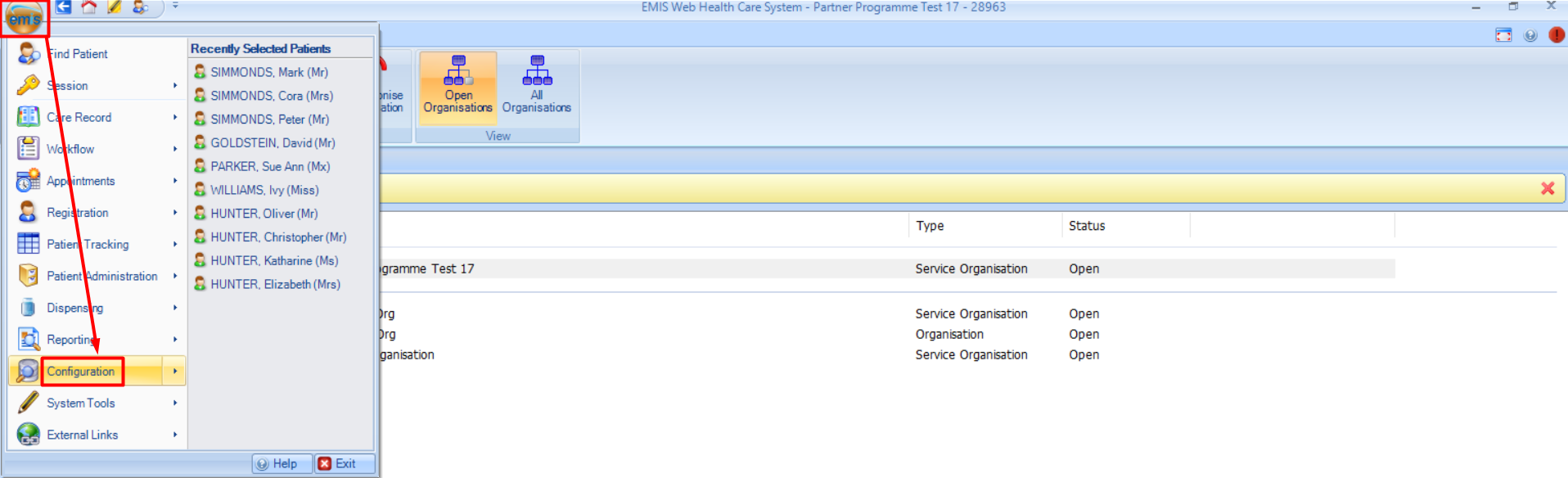 Click on Users 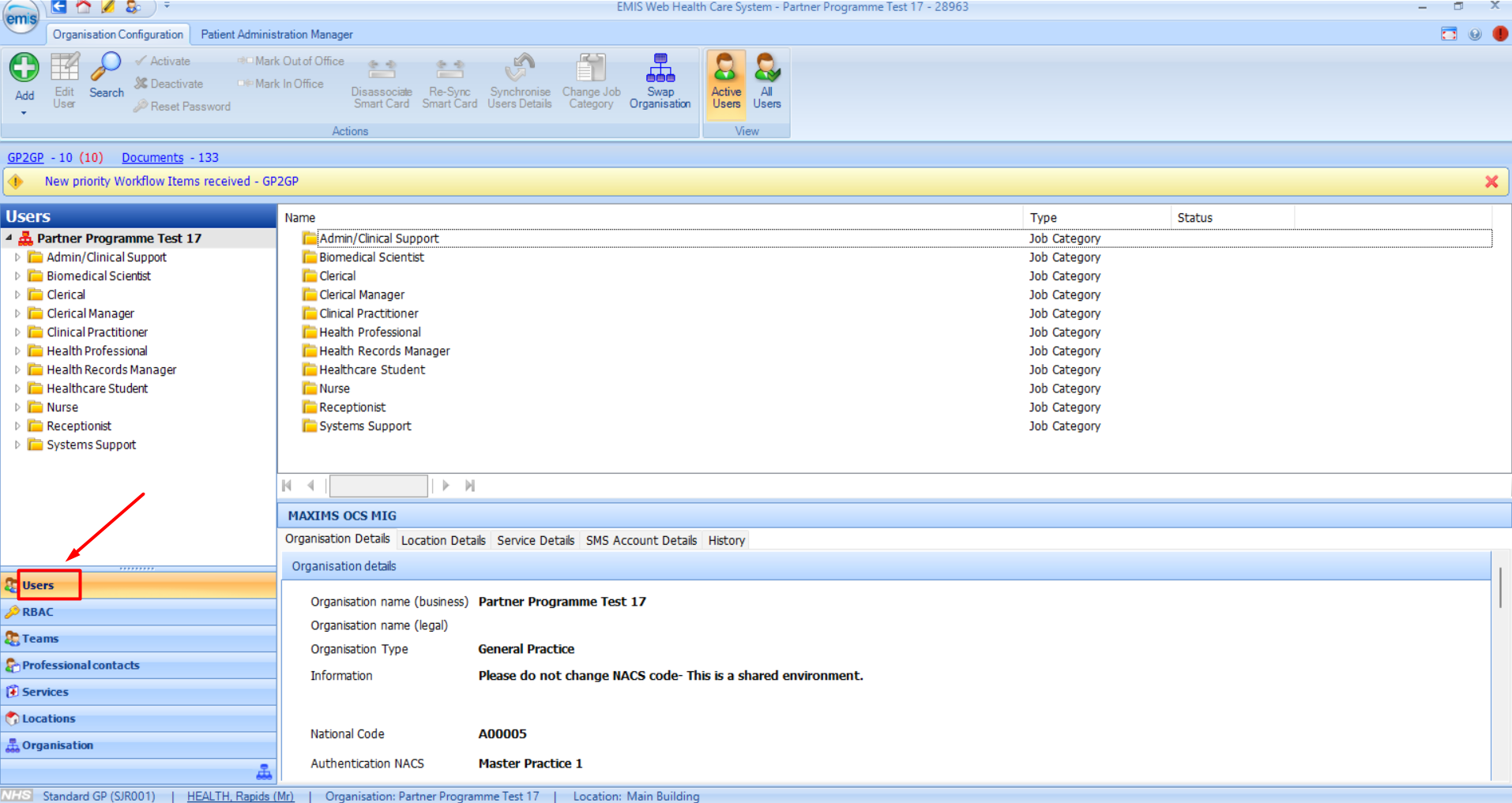 Then select Add New User  |
| Step C User details | Set up the User details with the details below for Mr Rapid Health. These details will be displayed on entries saved to the patient record by Rapid Health, so it's important that it clearly states Rapid Health, and not your details.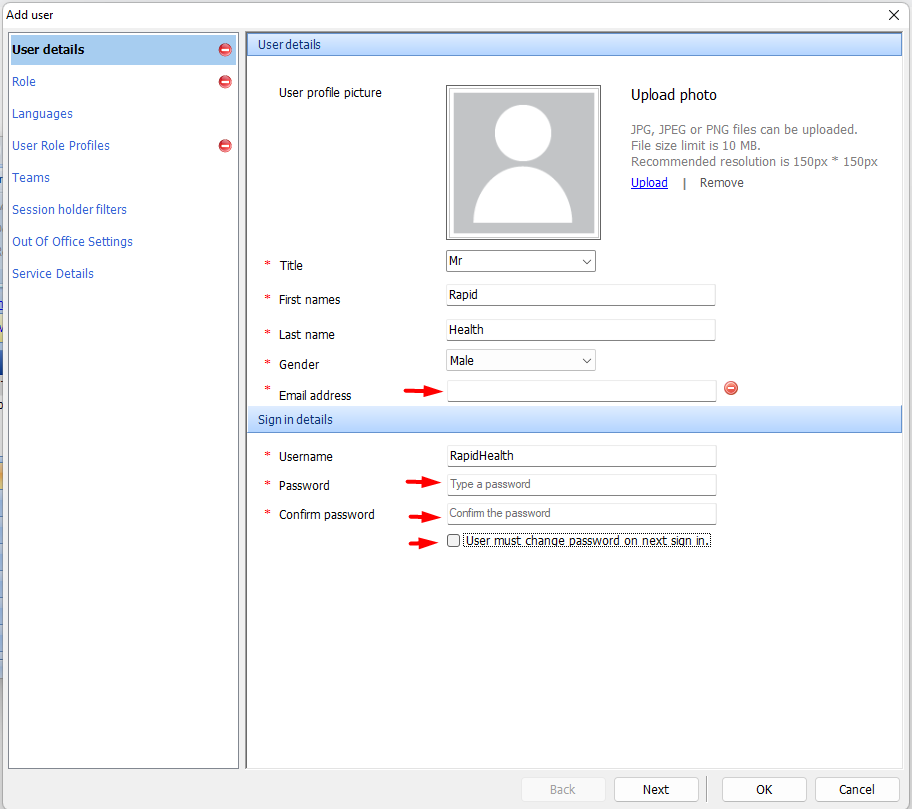
|
| Step D Role | Set up the Role using the information below.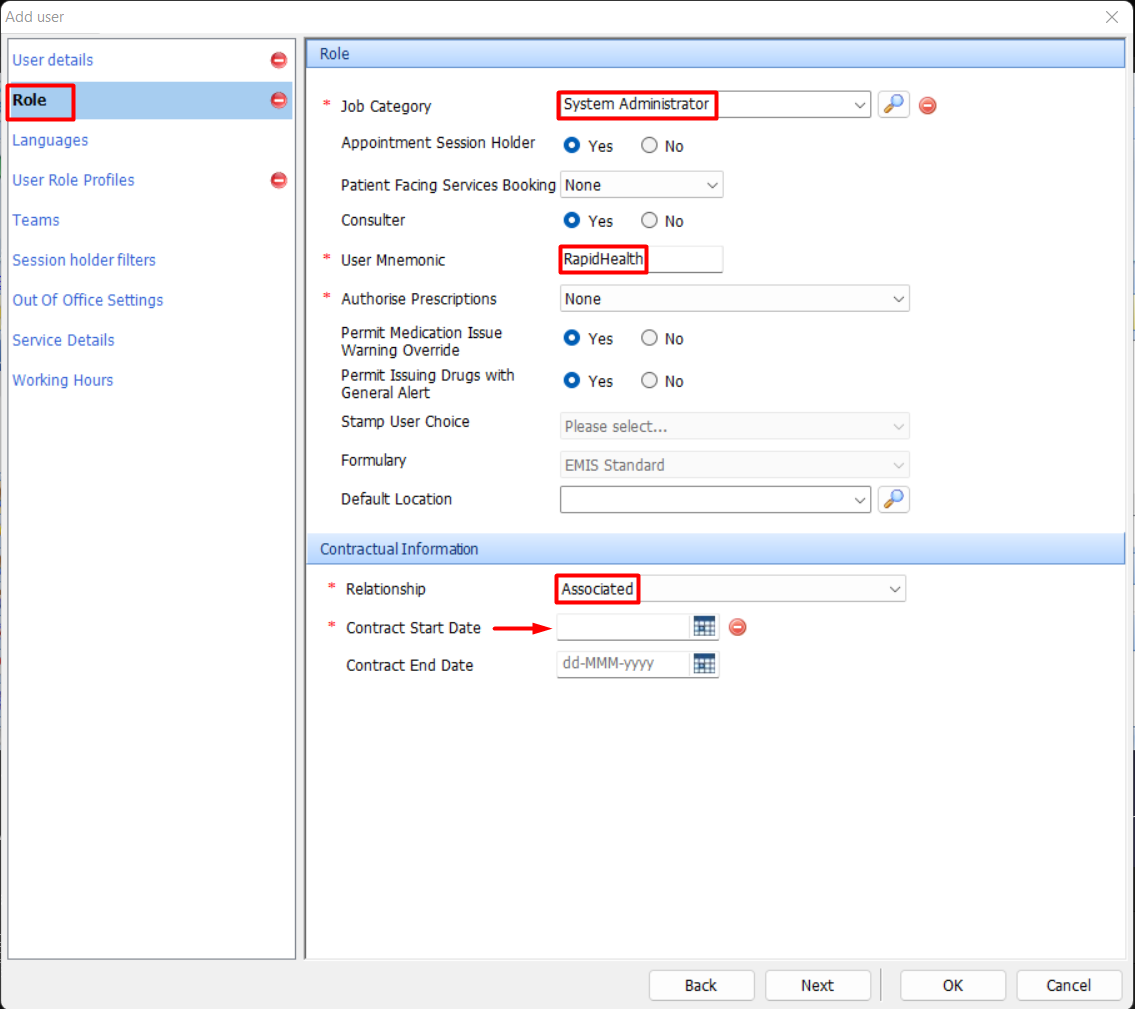
|
| Step E User Role Profiles | Set the User Role Profiles as follows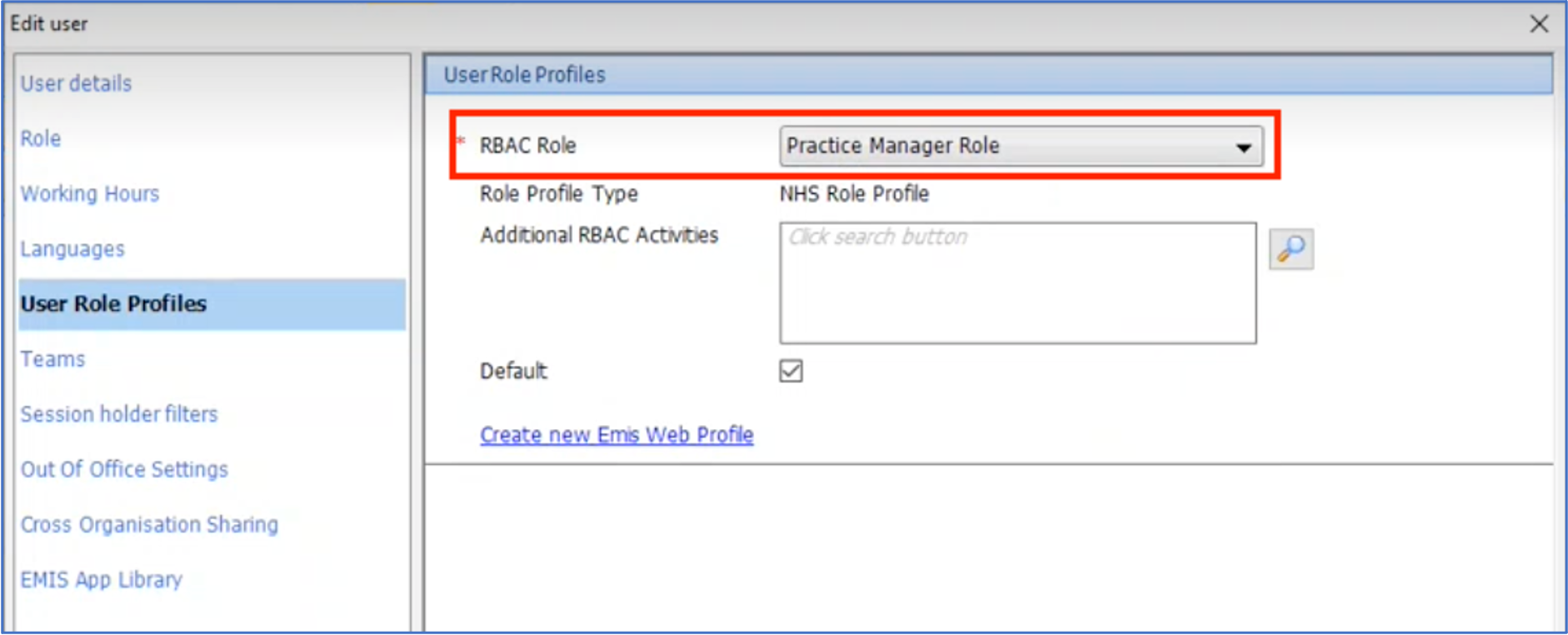
|
3. Add a location for Rapid Health online appointment booking
Step | Instructions |
|---|---|
| Step F Add Location | Still in the Organisation Configuration area, go to Locations and select Add 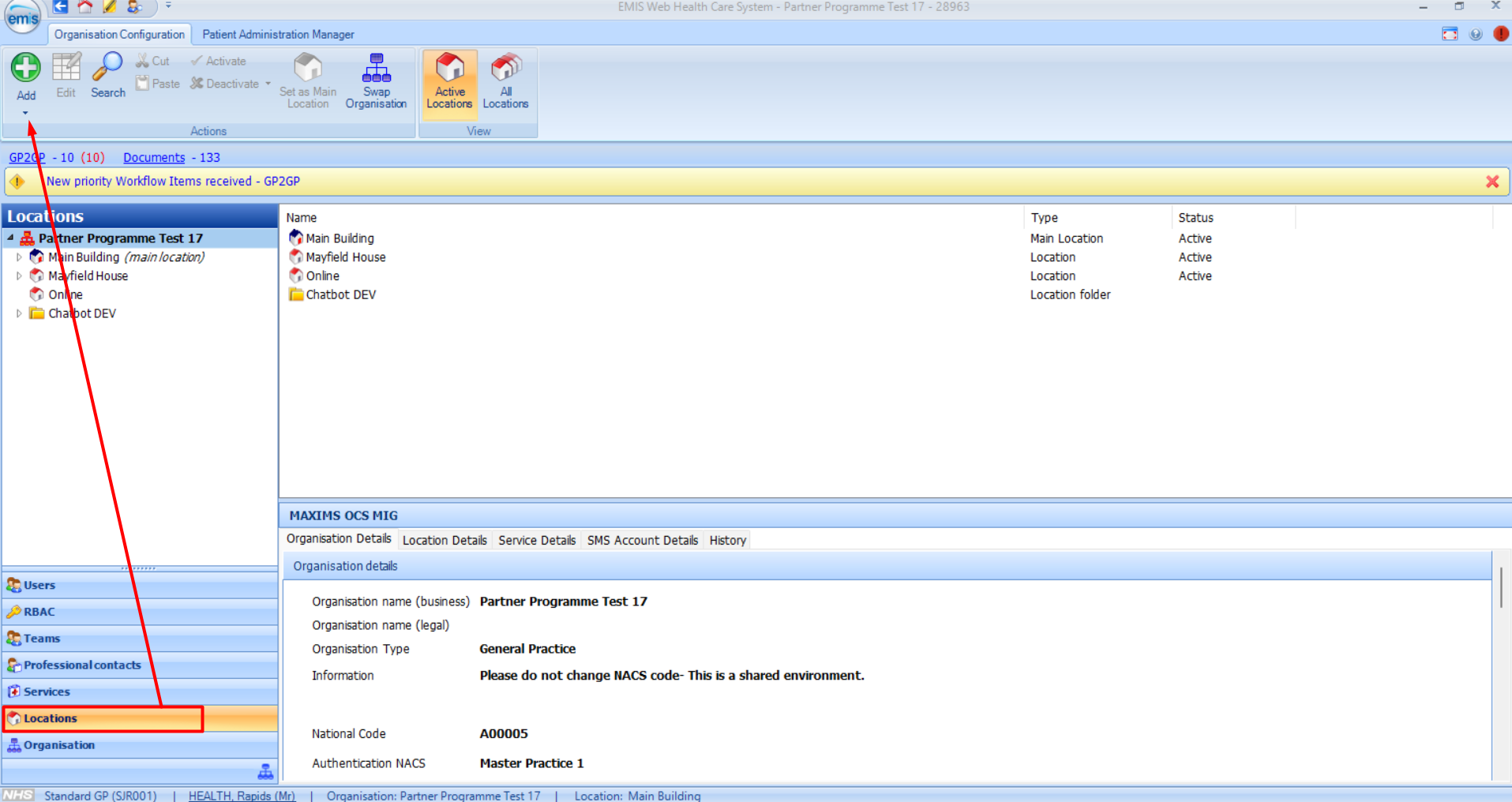 Then select Add location  |
| Step G Location Details | Add the following Location Details. These will be used for appointments booked online through Rapid Health. 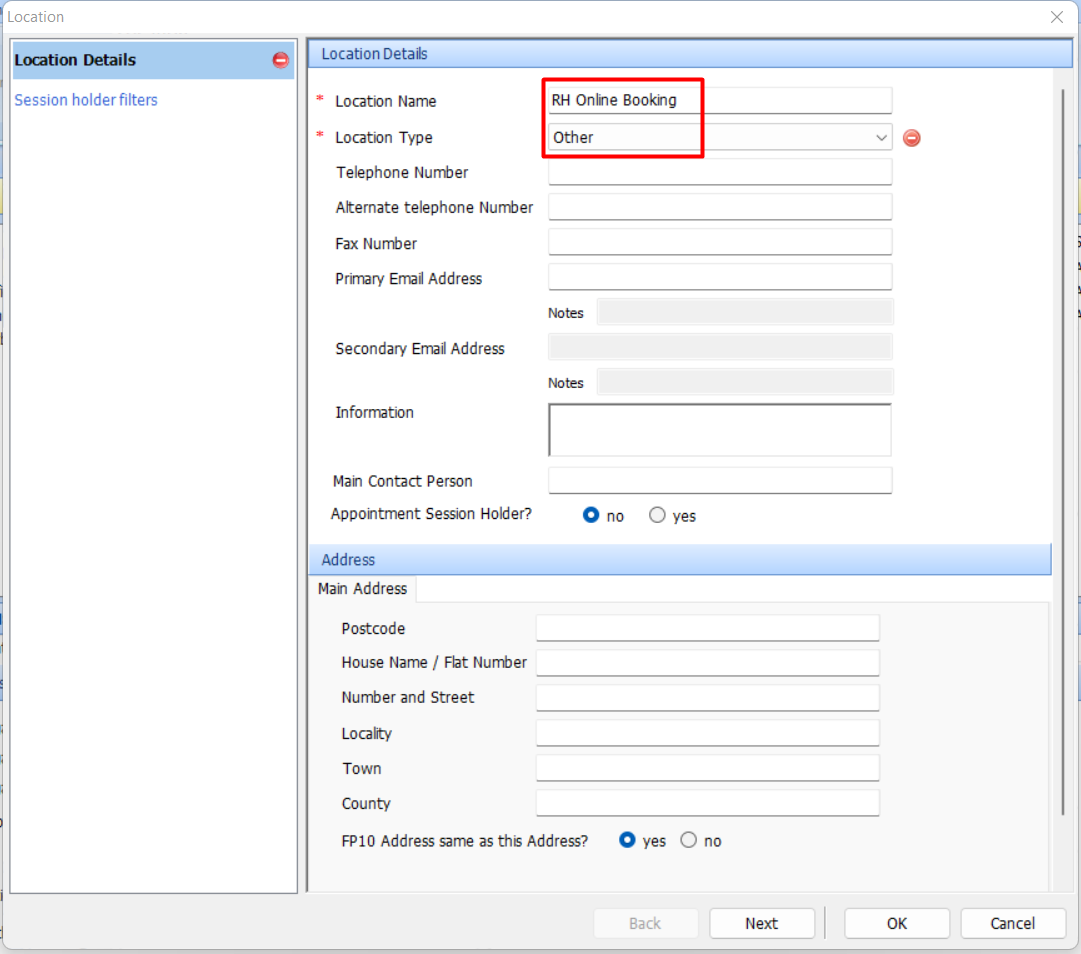
|
4. Activate Rapid Health in EMAS Manager
Step | Instructions |
|---|---|
| Step H System Tools | Staying on the same screen (if you wish), go to the EMIS button, click the System Tools arrow (see where the red arrow is pointing), and then click EMAS Manager.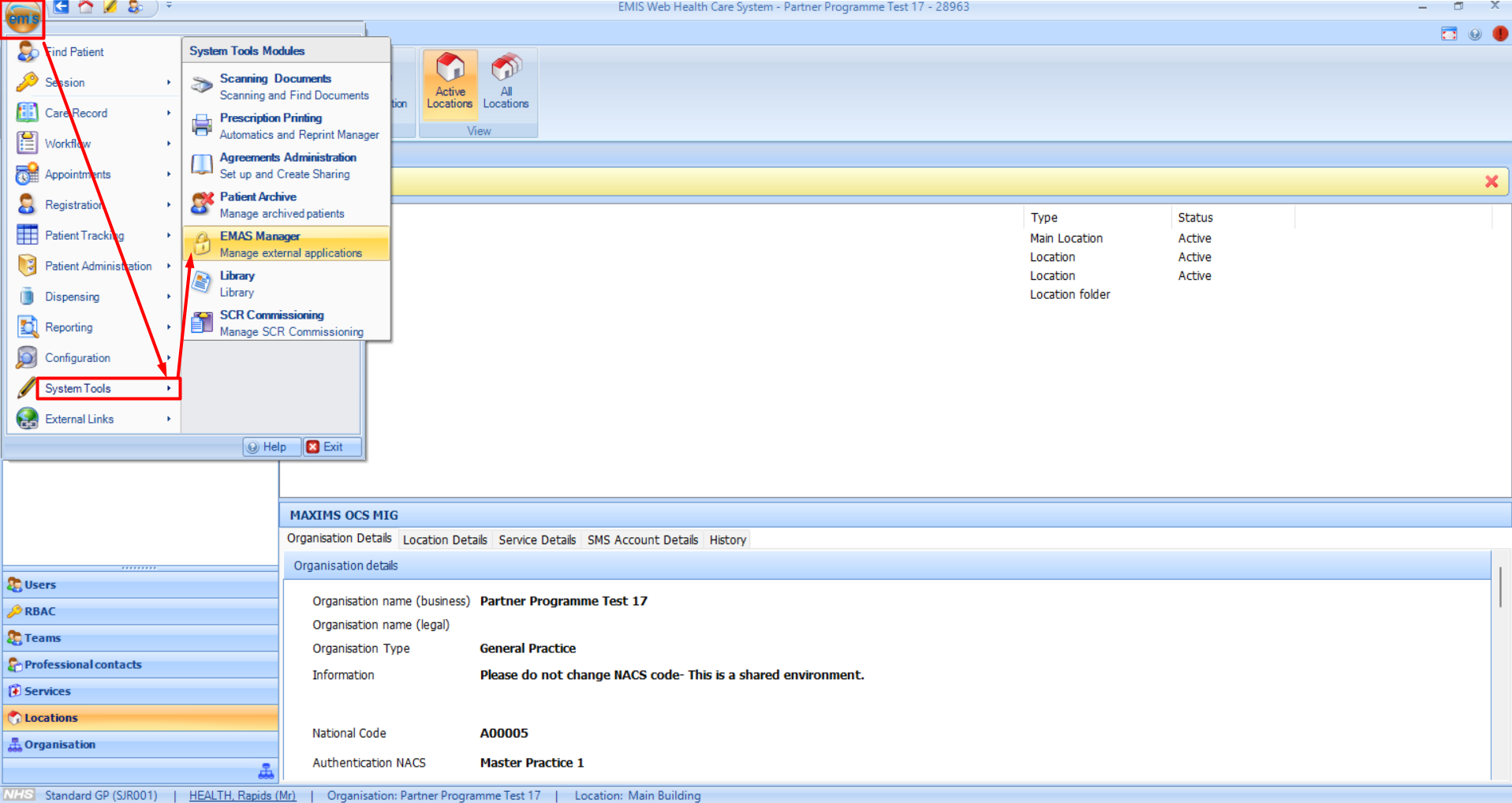 |
| Step J Partner API | Then select Partner API which you can see at the bottom of the list at the bottom left.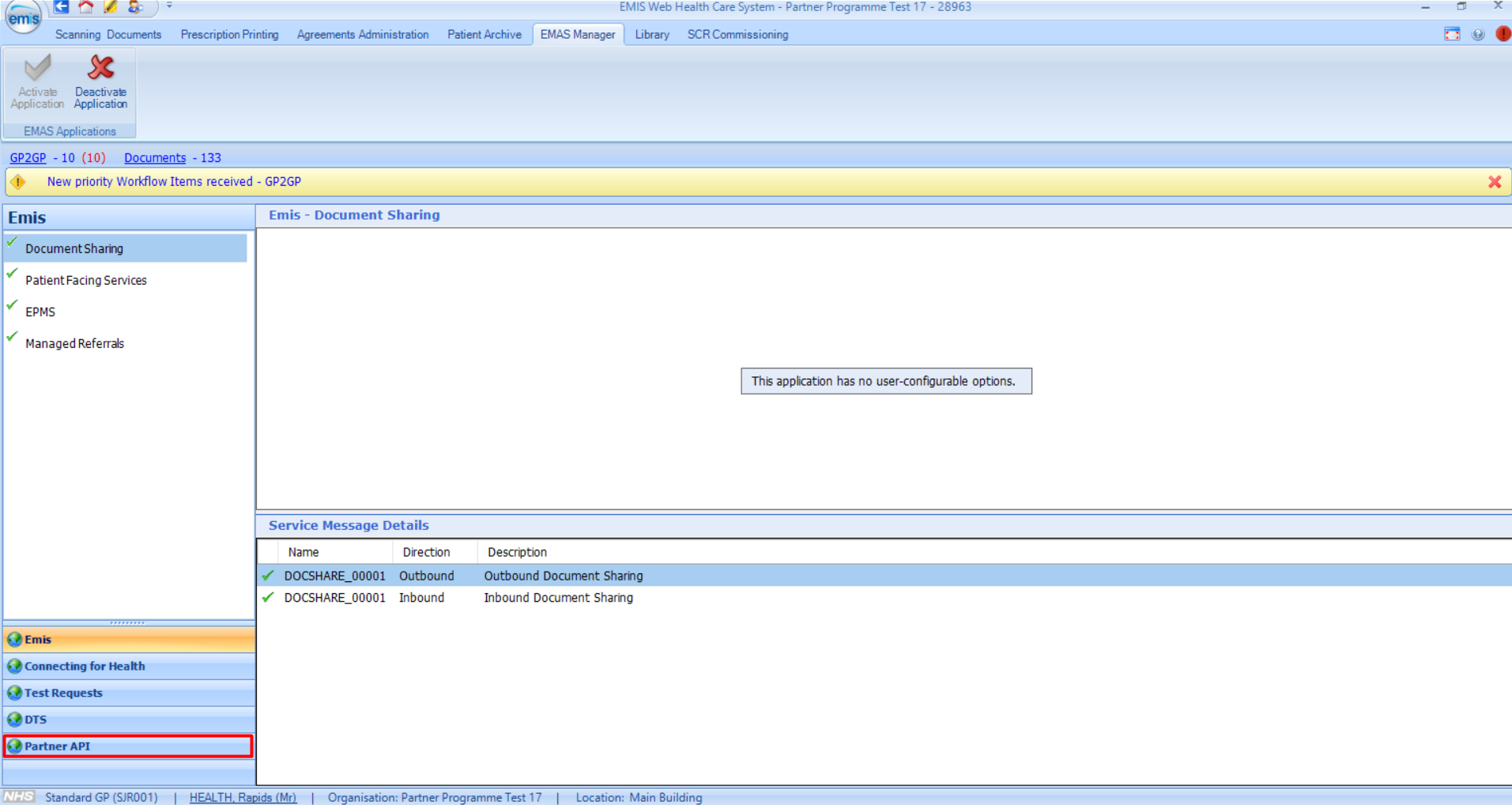 |
| Step K Activate Application | Scroll down to find "RAPID HEALTH" from the list 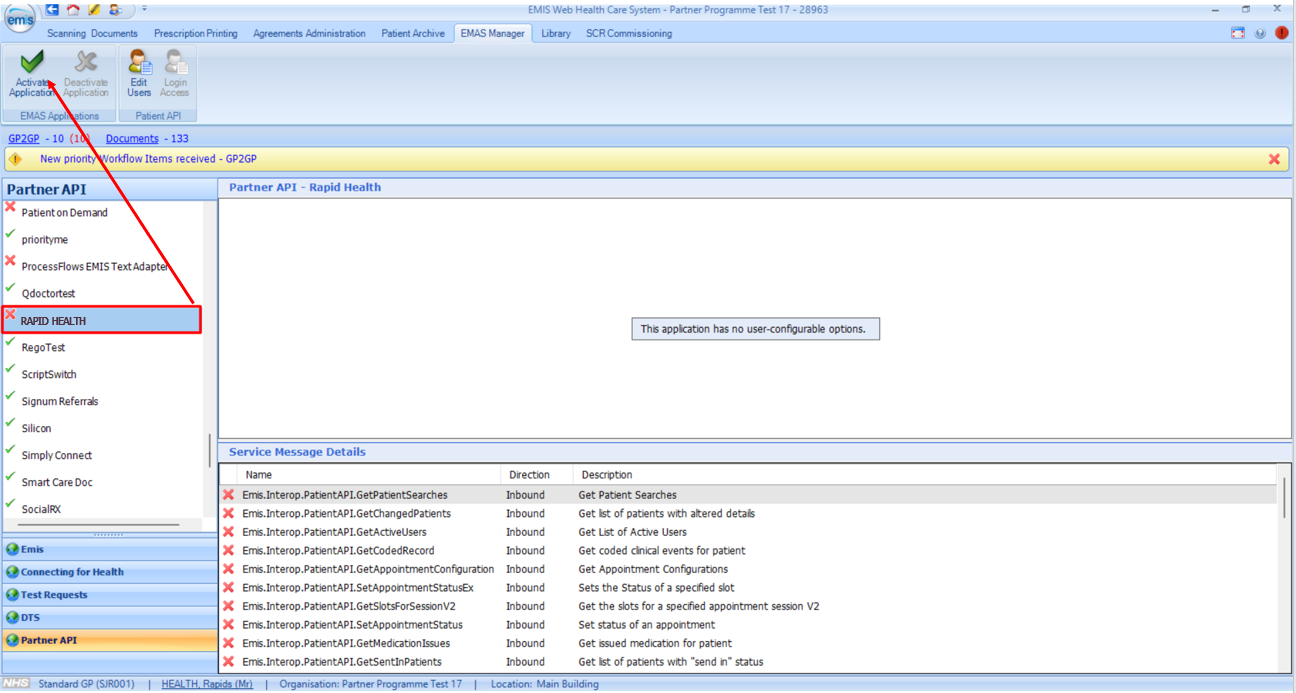 Then click on Activate Application and stay on this screen. Then click on Activate Application and stay on this screen. |
5. Set password for the Rapid Health software
Step | Instructions |
|---|---|
| Step L Edit Users | Following from Step 10, look to the top of the screen and select Edit Users |
| Step M User configuration | Find the new Health, Rapid (Mr) user to edit the details Tip: click on User to sort the users in alphabetical order, and scroll to the H's 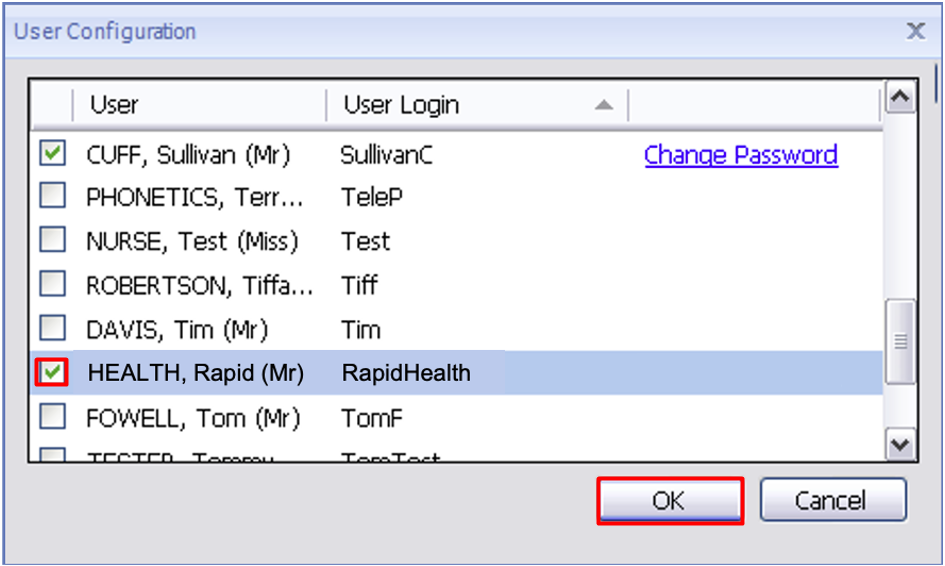 Select Health, Rapid (Mr) Select OK |
| Step N Create password | You will now set the second password, which Rapid Health's software will use to access your practice's EMIS.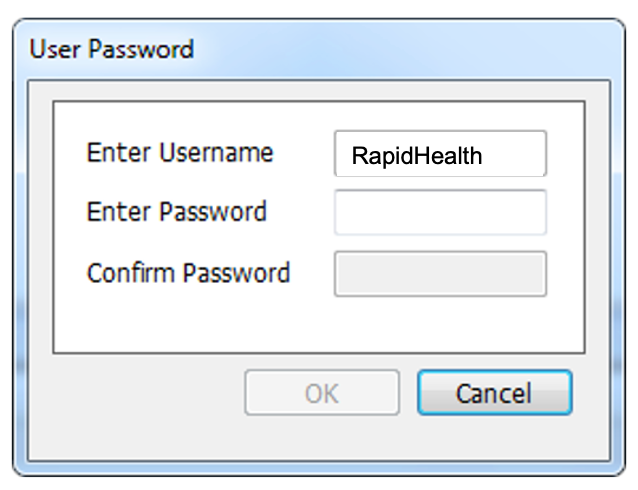 Username = RapidHealth Password = Enter the second password you've chosen, keeping a note of it.* [Note: There must be no space between "Rapid" and "Health" in the Username] Click OK and then stay on the same screen. *You will use this in the New Customer Setup Form as the Rapid Health Keyword. For security reasons, we use the term "Keyword" instead of "Password" on that form. |
6. Set Rapid Health login access
Step | Instructions |
|---|---|
| Step P Login Access | Staying on this screen, with Rapid Health still highlighted, click on Login Access which is next to Edit Users in Step 11.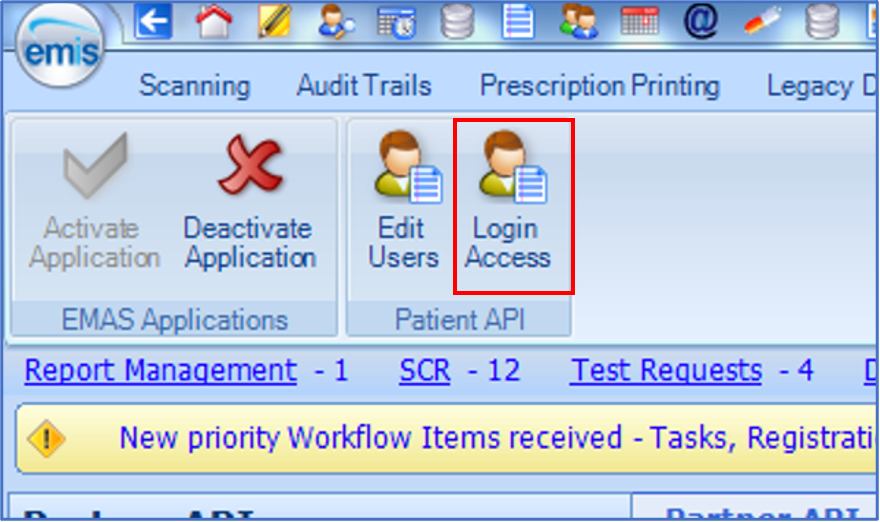 |
| Step Q Auto Login and Allow Login | Tick both Auto Login and Allow Login for Health, Rapid (Mr)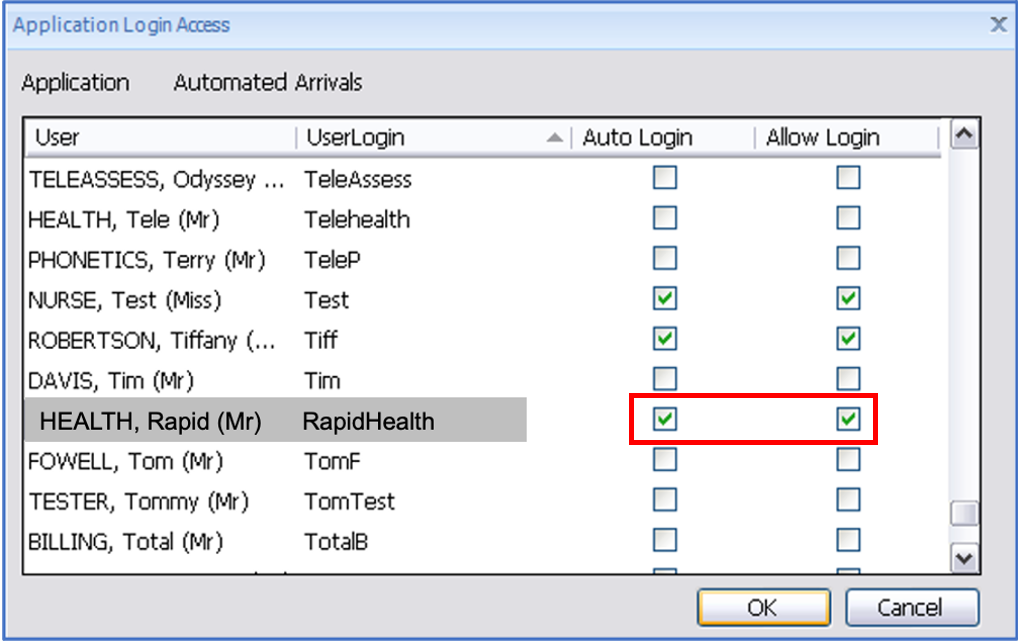 Click OK |
7. Check EMIS Dummy Patient postcode and details
Step | Instructions |
|---|---|
| Step R Check postcode | Please use the Royal Mail postcode checker to check your practice's dummy patient postcode is a valid postcode, if it's not a postcode you know is real. Rapid Health needs the dummy patient to have a real postcode, as otherwise the test will fail. We've found that many practices' dummy patients have made up postcodes. If the postcode was not real, please update it with a real one. |
| Step S Gather Dummy Patient details | Please make sure you have the following details for the dummy patient as you will need to enter them into the New Customer Setup Form.
* The system accepts patients up to 110 |
8. Find your EMIS Organisation ID / EMIS CDB Number
Step | Instructions |
|---|---|
| Step T Find EMIS Org ID / EMIS CDB Number | Look at the top of your screen - the last numbers you see are your EMIS Organisation ID, which is also known as your EMIS CDB Number. We've put a line through our number above, so you don't copy this in error. |
9. Checklist for New Customer Setup Form
Congratulations! You have completed all EMIS steps and are now ready for the New Customer Setup Form. You need three sets of information for this:
| 1 | Rapid Health Keyword | See Step N above. |
| 2 | EMIS dummy patient details | See Steps R and S above. Postcode must be real. |
| 3 | EMIS CDB number/EMIS Organisation ID | See Step T above. This does not begin with a letter. |
Any questions? Simply get in touch on support@rapidhealth.co.uk stating your practice name in the message, and we'll be delighted to help.
Was this article helpful?
That’s Great!
Thank you for your feedback
Sorry! We couldn't be helpful
Thank you for your feedback
Feedback sent
We appreciate your effort and will try to fix the article